4BIS InnovationsNLEN

Email Signature Microsoft Windows

Published: 16.11.2026

Add Email Signature to the Microsoft Windows


Step 1.
Go to Outlook.
Open the Outlook program on your computer.
Outlook icon


Step 2.
If you have Outlook open.
Press File (File in English) in the top right corner.
A menu will open.
Click on: Options
The settings menu then opens.
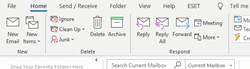
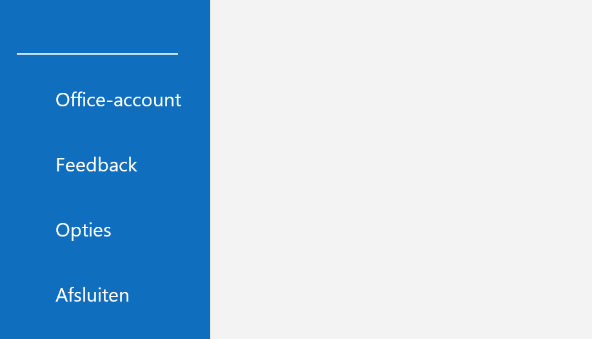
In the top menu on the left side is the first option the file option.The third option in the left sidebar is the options menu.


Step 3.
In the settings menu click on the tablet
email.
At the line Create or change signatures for messages, click the Signatures… button.
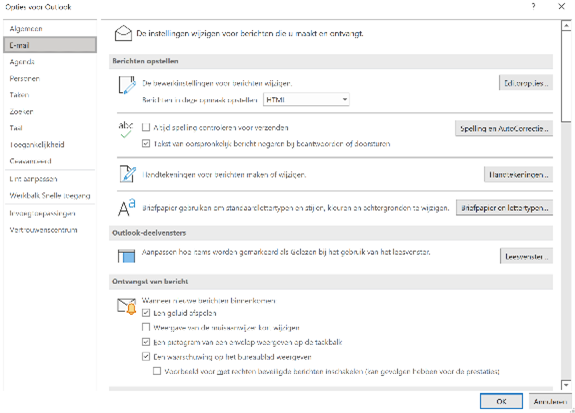
On the left sidebar, you need to have the second option e-mail. Then also the third option in the middle of the screen for the signatures.


Step 4.
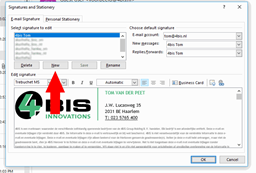
Click on New (New in English)
In the signature pop-up there is on the left side in the middle a buttonrow of 4 buttons. The second one is the new one.

Step 5.
Under choose default signature choose the email signature you just created in the new messages and replies/forwards dropdowns
Now you can create your signature in the field below, if you want to use a custom email signature you can paste it below.
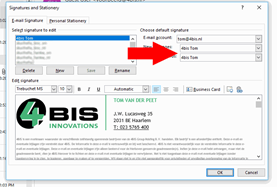

On the right side of the pop-up there are 3 options, you need to have the middle one for new messages.

The 4BIS Innovations team in Maastricht
10+people, one office in Maastricht

Got a platform that's outgrown itself?

We're a small team in Maastricht, not a call center. When you reach out, you talk directly with the developers who'd be working on your project, starting with a real conversation about what you're dealing with today.

MaxRensKieran
Max, Rens, Kieran and the rest of the team read every message.
Back to top