
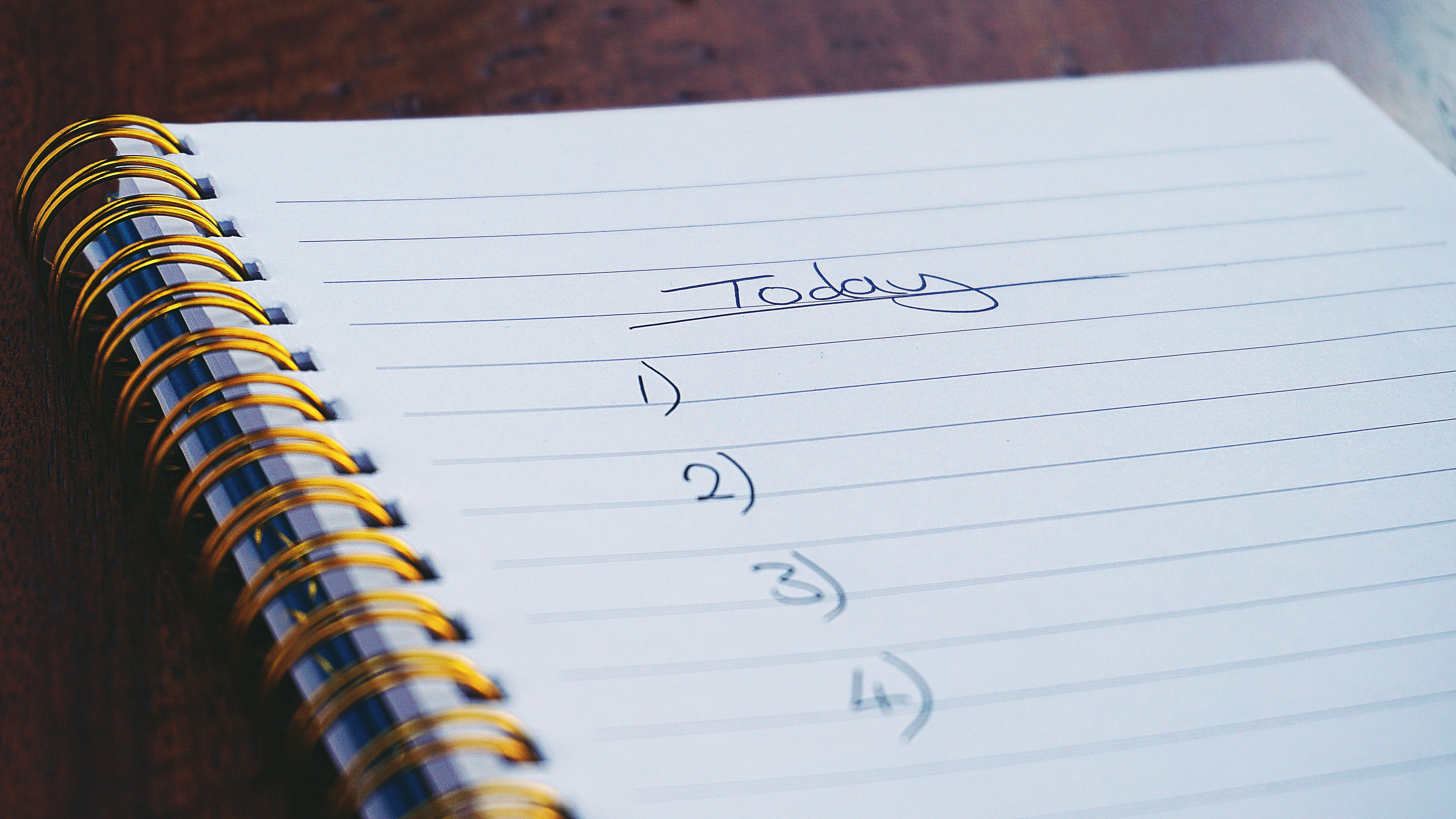
In the hustle and bustle of daily life, everyone relies on to-do lists to stay organized. However, the downside is the clutter of physical notes on your desk. To address this, I embarked on a mini project to create a tool that allows me to store my to-do lists directly in our customer portal. This way, I can access and save my tasks in the customer account I'm currently working on, ensuring seamless organization.
The Importance of Online To-Do Lists:
We've all experienced moments of overwhelm, juggling multiple tasks and possibly forgetting crucial items. This is where online to-do lists come to the rescue. Whether for work, personal life, or groceries, having a digital to-do list helps prevent desk clutter and ensures tasks are always visible.
Evolution of Our Customer Portal:
As part of our ongoing efforts to enhance our customer portal, we've introduced various features, including an improved Email Signature Generator, domain management, and a tool for creating and launching personalized landing pages. Our goal is to transform the customer portal into a comprehensive platform catering to the needs of budding entrepreneurs, offering tools for invoicing, planning, client management, and more.
Building a Custom Online To-Do List:
To address the challenge of managing software and development projects effectively, I initiated a project to create a customizable online to-do list within our customer portal. Below, I outline the steps I took to develop this tool.
HTML Structure:
I started with the HTML structure, creating input fields for task name and description, along with a "Save Task" button. Bootstrap classes were used for styling.
JavaScript Logic:
The JavaScript logic handles input validation, creation of to-do elements, and saving/retrieving tasks from local storage. Functions were created to check input, create to-do elements, save tasks, retrieve tasks on page load, and delete tasks.
  window.onload = function () {
            getToDoList();
        };

        var enterButton = document.getElementById("submit_btn");
        enterButton.onclick = checkInputToDo;

        function checkInputToDo() {
            clearErrors();

            var name = document.getElementById("todoName").value;
            var description = document.getElementById("todoDescription").value;

            if (name.length > 0 && description.length > 0) {
                makeToDoElement(name, description);
                saveListElement(name, description);
            } else {
                showErrors(name, description);
            }
        }

        function clearErrors() {
            var errorBox = document.getElementById('errors');
            if (errorBox.innerHTML !== "") {
                errorBox.innerHTML = "";
            }
        }

        function showErrors(name, description) {
            var errorBox = document.getElementById('errors');

            if (name.length === 0) {
                appendError('De naam van je TODO item is niet ingevuld');
            }
            if (description.length === 0) {
                appendError('De omschrijving van je TODO item is niet ingevuld');
            }

            function appendError(errorMessage) {
                var p = document.createElement('P');
                p.appendChild(document.createTextNode(errorMessage));
                p.classList.add('p-2');
                errorBox.appendChild(p);
            }
        }

        function makeToDoElement(name, description) {
            var list = document.getElementById("todo");
            var divcard = createDivWithClass("div", "card border border-primary my-2");
            var divbody = createDivWithClass("div", "card-body-row");
            var divcol10 = createDivWithClass("div", "col-10");
            var h4 = createElementWithClass("H4", "card-title", name);
            var p = createElementWithClass("P", null, description);
            var divbtn = createDivWithClass("div", "col-2");
            var dBtn = createButtonWithClasses("button", ["float-right", "btn", "btn-danger"], "X");

            divcol10.appendChild(h4);
            divcol10.appendChild(p);
            divbody.appendChild(divcol10);
            divbody.appendChild(divbtn);
            divcard.appendChild(divbody);
            list.appendChild(divcard);

            function taskDone() {
                divcard.classList.toggle("done");

                removeFromSession(name, description);
            }


            divcard.onclick = taskDone;
            dBtn.onclick = function (event) {
                event.path[3].remove();
                regenerateListForLocalStorage();
            };
            divbtn.appendChild(dBtn);

            document.getElementById("todoName").value = "";
            document.getElementById("todoDescription").value = "";
        }


        if (name.length > 0 && description.length > 0) {
            makeToDoElement(name, description);
            saveListElement(name, description);
        }

        function saveListElement(todoName, todoDescription) {
            var todo = {name: todoName, description: todoDescription};
            var todos = getStoredTodos();

            todos.push(todo);
            localStorage.setItem('todolist', JSON.stringify(todos));
        }


        function getStoredTodos() {
            return localStorage.getItem('todolist') ? JSON.parse(localStorage.getItem('todolist')) : [];
        }

        function getToDoList() {
            var todolist = getStoredTodos();
            var listContainer = document.getElementById("todo");

            listContainer.innerHTML = "";

            for (var i = 0; i < todolist.length; i++) {
                makeToDoElement(todolist[i].name, todolist[i].description);
            }
        }

        function deleteListItem(event) {
            event.path[3].remove();
            regenerateListForLocalStorage();
        }

        function removeFromSession(name, description) {
            var todos = getStoredTodos();
            var updatedTodos = todos.filter(function (todo) {
                return !(todo.name === name && todo.description === description);
            });

            localStorage.setItem('todolist', JSON.stringify(updatedTodos));
        }

        function regenerateListForLocalStorage() {
            var list = document.getElementById("todo").children;
            var todos = [];

            for (var i = 0; i < list.length; i++) {
                var nameElement = list[i].getElementsByTagName('H4')[0];
                var descriptionElement = list[i].getElementsByTagName('P')[0];

                if (nameElement && descriptionElement) {
                    var name = nameElement.innerHTML;
                    var description = descriptionElement.innerHTML;

                    var todo = {name: name, description: description};
                    todos.push(todo);
                }
            }

            localStorage.setItem('todolist', JSON.stringify(todos));
        }

        function createDivWithClass(elementType, classNames) {
            var div = document.createElement(elementType);
            if (classNames) {
                classNames.split(' ').forEach(function (className) {
                    div.classList.add(className);
                });
            }
            return div;
        }


        function createElementWithClass(elementType, className, text) {
            var element = document.createElement(elementType);
            if (className) {
                element.classList.add(className);
            }
            if (text) {
                element.appendChild(document.createTextNode(text));
            }
            return element;
        }

        function createButtonWithClasses(elementType, classes, text) {
            var button = document.createElement(elementType);
            if (classes) {
                classes.forEach(function (className) {
                    button.classList.add(className);
                });
            }
            if (text) {
                button.appendChild(document.createTextNode(text));
            }
            return button;
        }
CSS Styling:
CSS styling includes a "done" class to visually indicate completed tasks with a FontAwesome icon and a background color.
.done:before {
    font-family: "Font Awesome 5 Free";
    content: "\f00c";
    display: inline-block;
    padding-right: 3px;
    vertical-align: middle;
    font-weight: 900;
    font-size: 80px;
    position: absolute;
    right: 70px;
    color: #34b534;
}

.done {
    background: #d3efd3;
}
Preview:
Conclusion:
By integrating a customizable online to-do list into our customer portal, I've created a convenient tool for efficient task management. This solution allows for the seamless storage and retrieval of tasks, promoting a clutter-free and organized workspace. As I continue to enhance this tool, the goal is to enable users to manage multiple lists for different projects and provide a comprehensive overview for better task prioritization.